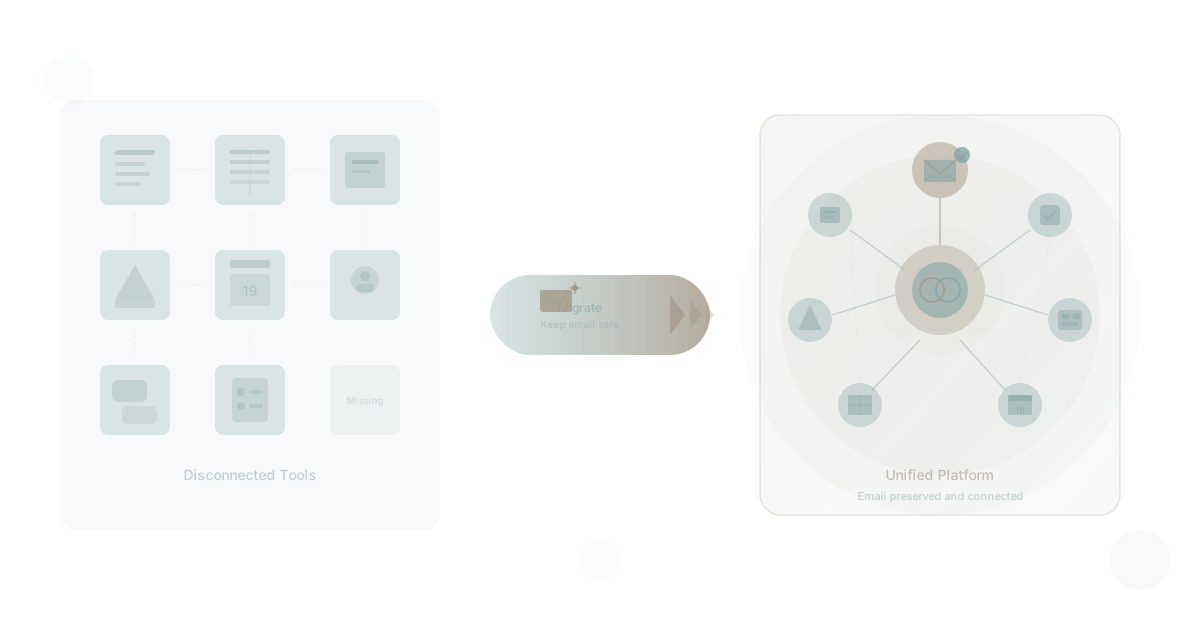
The single biggest fear when leaving Google Workspace is losing email. Every IT leader who has considered migrating away from Google has paused at the same thought: what happens to our business email?
It is a legitimate concern. Email is the one tool that touches every customer, every vendor, every internal process. Losing a single day of email continuity can cost a business thousands of dollars in missed opportunities and broken trust.
Here is the good news: you do not have to lose email to leave Google Workspace. You have two clear paths. Keep Gmail as a standalone service while replacing everything else. Or migrate email to a platform that includes business email natively. Both paths work. This guide walks you through each one, step by step.
Why Leave Google Workspace at All?
Before getting into the how, it helps to be clear about the why. The reason to leave Google Workspace is not that it is a bad product. Gmail is excellent. Google Docs is capable. Google Sheets handles most spreadsheet needs.
The problem is that Google Workspace is incomplete. It gives you documents, spreadsheets, and email, but it does not give you task management, goal tracking, project management, CRM, or any of the operational tools a business needs to actually run.
According to Gartner's research on SaaS spending, the average organization now uses over 80 separate software applications. Google Workspace covers perhaps five or six of those. The rest create what we call app sprawl — a fragmented landscape of disconnected tools that forces your team to context-switch hundreds of times per day.
The result is a hidden cost structure that goes far beyond your Workspace license fee. When you add the cost of supplementary tools, integration maintenance, context switching, and knowledge loss, your real Google Workspace TCO can reach three to five times the listed price.
That is why businesses are leaving. Not because Gmail is bad, but because the disconnection between your email, your tasks, your goals, and your projects is costing more than you realize.
Step 1: Audit What You Actually Use in Google Workspace
The first step is honest accounting. Open your Google Workspace admin console and look at actual usage data — not what you are paying for, but what your team is using daily.
Create Your Usage Inventory
Build a table with four columns: the Google Workspace tool, how many people use it weekly, what they use it for, and whether a replacement needs to cover that use case.
Core tools to audit:
- Gmail — How many accounts? What volume? Any shared inboxes or aliases? What integrations depend on Gmail?
- Google Drive — How much storage used? How is it organized (or not)? Any shared drives with external collaborators?
- Google Docs — For what kinds of documents? Proposals? Internal wikis? Meeting notes? Are there templates people rely on?
- Google Sheets — Simple tracking, or complex spreadsheets with scripts and formulas? Any sheets acting as databases?
- Google Slides — How frequently? For client presentations or internal decks? Any custom templates?
- Google Calendar — Integrations with external scheduling tools? Shared calendars? Room bookings?
- Google Meet — Primary video tool, or do teams use Zoom or Teams instead?
- Google Chat — Actually used, or does everyone live in Slack or Teams?
- Google Forms — Survey usage, intake forms, data collection?
Most organizations discover that they heavily use three or four of these tools and barely touch the rest. That matters because it means you are paying for a full suite but only getting value from a fraction of it.
Identify Your Integration Dependencies
This step is critical and often overlooked. List every tool that connects to Google Workspace. CRM systems that sync with Gmail. Calendar integrations. Drive automations through Zapier or Make. Single sign-on configurations.
These dependencies determine your migration complexity. A business with two Gmail integrations has a very different migration path than one with twenty.
Step 2: Map Each Tool to Its Replacement
With your audit complete, map each actively used Google Workspace tool to its replacement. The goal is not a one-to-one swap of each tool. The goal is consolidation — replacing multiple disconnected tools with a unified platform that covers more ground.
The Tool Replacement Map
| Google Workspace Tool | What It Does | Unified Platform Replacement |
|---|---|---|
| Gmail | Business email | Keep standalone OR migrate to built-in email |
| Google Drive | File storage | Platform document management with contextual organization |
| Google Docs | Documents | Integrated documents connected to projects, goals, and tasks |
| Google Sheets | Spreadsheets | Tables and structured data connected to workflows |
| Google Slides | Presentations | Presentation tools within the same workspace |
| Google Calendar | Scheduling | Calendar integrated with tasks and project timelines |
| Google Meet | Video calls | Third-party video (Zoom, Teams) or built-in calling |
| Google Chat | Messaging | Platform messaging or Slack integration |
The key difference between a one-to-one tool swap and platform consolidation is connectedness. In Google Workspace, your documents, your tasks, and your goals live in entirely separate systems. In a unified productivity platform, they are part of the same workspace.
A project document lives inside the project. A goal is tracked alongside the tasks that drive it. A client note is connected to the deal and the team responsible. That connectedness is what eliminates the context switching and knowledge fragmentation that makes Google Workspace expensive in ways your invoice never shows.
Step 3: Migrate Your Data
Data migration is the most technical step, but it is also the most well-documented. Google provides excellent export tools, and most receiving platforms have import capabilities built in.
Google Takeout: Your Data Export Tool
Google Takeout lets you export all your Google data in standard formats. For a Workspace migration, focus on:
- Gmail: Exports as MBOX format (universal email standard)
- Drive: Exports files in their original formats; Google Docs convert to DOCX, Sheets to XLSX
- Calendar: Exports as ICS files
- Contacts: Exports as CSV or vCard
Migration Priority Order
Do not migrate everything at once. Follow this sequence:
- Documents and files first — Lowest risk, easiest to verify, gives team something to work with immediately
- Contacts and calendars — Quick migration, high daily impact
- Email archive — Import historical email so nothing is lost
- Active email — The final switchover (see Step 4 below)
Data Verification Checklist
After each migration phase, verify:
- File count matches source and destination
- Document formatting survived conversion
- Shared permissions transferred correctly
- Links and references still work
- No data corruption in spreadsheets with formulas
Budget one to two weeks for data migration in a 50-person organization. Larger organizations should plan for a month. McKinsey's research on digital transformations shows that rushed migrations are the primary cause of failed platform transitions.
Step 4: Handle Email — The Critical Decision
This is where most migration guides fall short. Email is not just another tool — it is your business identity. Your domain, your reputation, your communication lifeline. You have two options, and both are valid.
Option A: Keep Gmail as a Standalone Service
This is the lower-risk path and the one most businesses should start with.
How it works: Google offers Gmail as part of Google Workspace, but your email does not have to be tied to your productivity tools. You can keep your Google Workspace subscription at the lowest tier purely for email while replacing Docs, Sheets, Drive, and everything else with a unified platform.
The steps:
- Downgrade your Workspace plan to Business Starter — the entry tier, which gives you Gmail, 30GB pooled storage and basic features. Seat prices vary by country and commitment and have changed since this was written; check Google's page for the current figure
- Remove tool dependencies — Ensure no critical workflows depend on Docs, Sheets, or Drive
- Maintain DNS records — Your MX records stay pointed at Google, so email delivery is unaffected
- Transition productivity tools — Move your team to the new platform for documents, tasks, projects, and goals
Advantages:
- Zero email downtime
- No MX record changes
- Familiar email interface for team
- Gradual transition reduces risk
Disadvantages:
- Still paying Google for email (the entry tier per user, whatever it currently costs)
- Two separate logins (email and productivity platform)
- Email remains disconnected from your operational tools
Option B: Migrate Email to a Platform with Built-In Email
This is the more complete path. If your replacement platform includes business email, you can consolidate everything — including email — into a single environment.
How it works: Your business email moves to a new provider. Your domain stays the same (you@yourdomain.com). Only the underlying infrastructure changes.
The steps:
- Verify platform email capabilities — Confirm the new platform supports custom domains, aliases, shared inboxes, and whatever features your team relies on
- Set up email accounts on the new platform — Match every mailbox, alias, and distribution list
- Import historical email — Use MBOX or IMAP migration to bring over your email archive
- Run parallel email for two to four weeks — Both systems receive mail during the transition
- Update MX records — Point your domain's mail exchange records to the new provider
- Verify delivery — Send test emails from external accounts to confirm routing
- Decommission Google Workspace — Cancel your subscription once the parallel period confirms stability
Advantages:
- Single platform for email, documents, tasks, goals, and projects
- Eliminate Google Workspace cost entirely
- Email connected to your operational data (a client email surfaces alongside their project)
- One login, one search, one workspace
Disadvantages:
- More complex migration with a higher coordination requirement
- Brief period of heightened risk during MX cutover
- Team needs to learn a new email interface
Which Option Should You Choose?
Choose Option A if:
- Your team is large (100+ users) and change management is a concern
- You have complex Gmail integrations that would take months to untangle
- Your IT team is small and cannot manage a parallel email migration
- You want to reduce risk by migrating in stages
Choose Option B if:
- You want a single unified platform and are willing to invest in the transition
- Your Google Workspace renewal is approaching and you want to eliminate the cost
- You have fewer than 50 users and can manage the transition closely
- Your replacement platform has mature email capabilities with strong deliverability
Many organizations start with Option A and move to Option B six to twelve months later, once they have confidence in their new platform.
Step 5: Transition Your Team
Technology migration is only half the job. The other half is people. According to Harvard Business Review's research on organizational change, 70% of transformation initiatives fail because of people issues, not technology issues.
The Two-Week Transition Framework
Week 1: Parallel Running
- Both systems active simultaneously
- Team uses new platform for new work
- Old platform available as reference
- Daily check-in: "What's working? What's confusing?"
Week 2: Primary Switchover
- New platform becomes the default for all work
- Old platform available but discouraged
- Support sessions for team members who are struggling
- Document and resolve issues as they surface
Communication Plan
Do not underestimate the importance of explaining why you are making this change. "We are switching tools" generates resistance. "We are eliminating the disconnection between your email, tasks, and goals so you can spend less time searching and switching and more time on actual work" generates buy-in.
Frame the migration around the problem it solves, not the technology it replaces. Your team does not care about platform architecture. They care about whether they can find what they need and get their work done without friction.
Training Priorities
Focus training on the workflows that matter most, not feature-by-feature walkthroughs.
- How to find your documents — This is the number one source of anxiety in any migration
- How to manage your tasks and projects — The daily operational workflow
- How email works (if migrating email) — Where to find it, how it connects to other work
- How to create new documents — Starting new work in the new system
- Where to get help — Internal support channel, documentation, FAQ
What to Look for in a Google Workspace Replacement
Not all alternatives are equal. When evaluating platforms, use this checklist.
Must-Have Capabilities
- Documents and sheets — Cannot lose document creation capability
- Task and project management — The whole point of leaving is to unify operations
- Goal and OKR tracking — Strategic alignment connected to daily work
- Business email (or clean Gmail integration) — Email must work seamlessly
- Roles and permissions — Enterprise-grade access control
- Search across everything — One search bar that finds documents, tasks, emails, and projects
Differentiating Capabilities
- AI that works across your data — Not AI bolted onto one tool, but intelligence that understands your documents, tasks, and goals together
- Custom application building — The ability to build apps that extend the platform for your specific workflows
- API access — Programmatic access for integrations and automation
- Team workspaces — Organizational structure that mirrors how your business actually works
Red Flags to Avoid
- Another point solution — Replacing Google Docs with Notion and Google Sheets with Airtable just creates different fragmentation
- No email story — If the platform cannot handle email (either built-in or integrated), you are still split
- Limited import — If you cannot bring your Google data in cleanly, the migration will be painful
- No offline access — Your team needs to work without internet occasionally
The Bigger Picture: Why Disconnection Is the Real Problem
The decision to leave Google Workspace is not really about Google. It is about the architecture of how your business works.
When your email lives in one system, your tasks in another, your goals in a third, and your documents in a fourth, you are forcing every person in your organization to be a human integration layer. They are the ones connecting the dots, remembering context, and manually transferring information between tools.
That is why companies are leaving Google Workspace in 2026. Not because the individual tools are bad, but because the disconnection between tools creates a hidden tax on every hour of every workday.
The organizations that thrive in 2026 and beyond will be the ones that solve this disconnection — not by adding another integration layer on top, but by consolidating onto platforms where email, documents, tasks, goals, and projects exist in the same workspace, share the same data, and surface the same intelligence.
Your email is safe. Your data is portable. The only thing holding you back from a unified productivity environment is the decision to start. And if you are comparing options beyond Google, our Google Workspace vs Microsoft 365 analysis can help you evaluate both incumbents against unified alternatives.
Start Your Migration
Ready to consolidate? The complete Google Workspace migration guide provides a comprehensive checklist covering every phase from audit to optimization. For a quick cost comparison, see our Google Workspace true cost analysis — the numbers may surprise you.
Waymaker Commander unifies documents, tasks, goals, projects, and team workspaces in a single platform — with business email built in. It is designed for exactly this migration: leave the fragmentation, keep the productivity, preserve your email.
Stuart Leo is the founder of Waymaker.io and creator of WaymakerOS. He has spent two decades helping businesses align strategy, operations, and technology — and has seen firsthand how tool fragmentation silently erodes organizational performance.
Part of our guide to leaving google workspace.
Frequently asked questions
- Can you leave Google Workspace and keep your email address?
- Yes. The address belongs to your domain, not to Google. Moving means repointing your domain's MX records at a new provider and copying existing mail across. Every address survives — what changes is who hosts the mailbox behind it, which your correspondents never see.
- How long does a Google Workspace migration actually take?
- The DNS cutover takes minutes to propagate. Copying historic mail is the long part and scales with volume rather than headcount — a decade of archives takes considerably longer than twenty new mailboxes. Most teams run both systems for a week so nothing sent mid-change is lost.
- What breaks when you leave Google Workspace?
- Rarely the documents. What breaks is anything built on top: Apps Script automations, Drive folder permission structures accumulated over years, and third-party tools that authenticate through Google identity. Audit those three before setting a date, because each is a rebuild rather than an export.
- Can you keep Gmail while replacing the rest of Google Workspace?
- Yes, and for many teams it is the lower-risk first move. Keep a Workspace subscription at the entry tier purely for mail, and replace documents, storage and collaboration elsewhere. It costs more than a full move but removes the hardest part of the migration from the critical path.
- What happens to shared drives and calendars?
- Shared drive contents export, but the permission structure does not travel with them — you rebuild who can see what at the destination. Calendars migrate, though invitations already in circulation still point at the old system, which is the usual reason to run both in parallel briefly.
About the Author

Stuart Leo
Stuart Leo founded Waymaker to solve a problem he kept seeing: businesses losing critical knowledge as they grow. He wrote Resolute to help leaders navigate change, lead with purpose, and build indestructible organizations. When he's not building software, he's enjoying the sand, surf, and open spaces of Australia.